Roku Screen Mirror & Cast TV
AirBeamTV BVProductivity
4.11.06K Reviews
- Version
- 3.46
- Installs
- 1.00M
- Age Rating
- Everyone
Screenshots
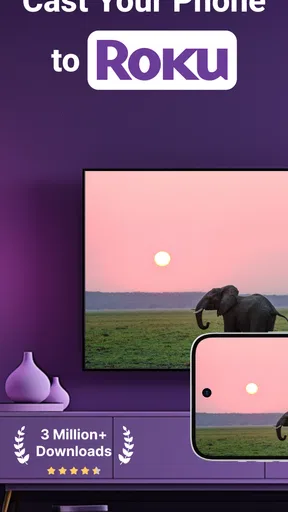
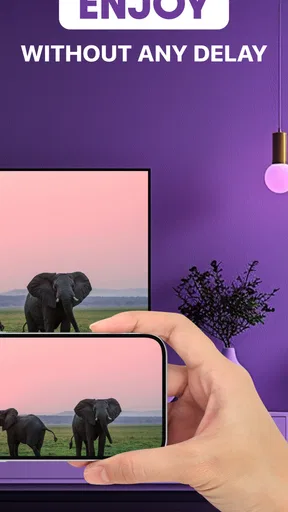
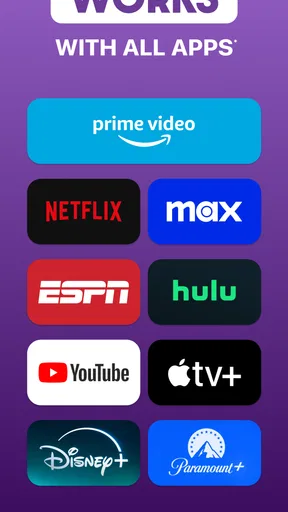
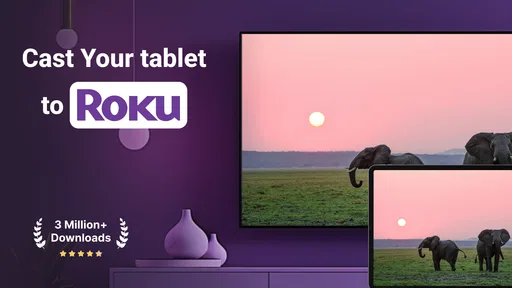
Our Review of Roku Screen Mirror & Cast TV
 Analysis by Appyee
Choosing a phone-to-TV app is less about finding a tool that can send every kind of content and more about matching the method to what you want to watch. I look at three things first: whether the TV is supported, whether the content can be played this way, and whether a small amount of setup is worth avoiding a cable or switching between devices. Roku Screen Mirror & Cast TV makes the most sense when the Roku is already part of your home setup and I want to put photos, a presentation, or a web video on the larger screen.
Pick the right kind of casting for the job
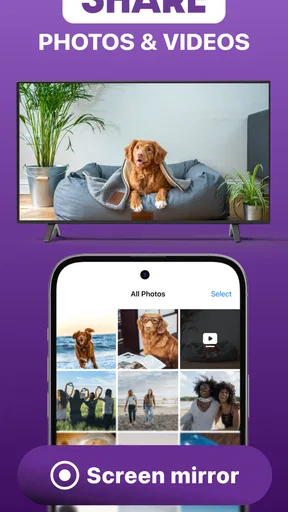
Screen mirroring and direct video casting solve related but different problems. Mirroring sends what is shown on the phone to the TV, which can be useful for photos, slides, or a page that does not offer its own cast option. Directly casting a web video is more focused: I can choose a clip on the phone and watch it on the TV without treating the entire phone display as the show. Having both approaches available is useful, but neither makes the app a universal replacement for the Roku’s own channels.
That distinction helps set expectations. If I want to show a photo album to family, mirroring is the natural choice. If I have found a web video and want to watch from the couch, the web-video route is a better fit. If I want to play a protected subscription stream, I should use the service’s Roku app or another supported playback method instead. Choosing the route before I start saves time and avoids assuming every image or video can travel through the same path.
Where this Roku-focused app earns its place
The practical win is having a phone-based option for content that is already on the phone or available in a browser. I do not need to turn a quick family photo share into a file-transfer project, and a presentation can be easier to show on a living-room TV than by passing a phone around. For an occasional task, that convenience can matter more than having a full media-center setup.
AirBeamTV BV develops the app, which sits in the productivity category despite its obvious connection to home entertainment. That makes sense to me: its strongest uses include sharing information and personal media, not just settling in for a full-length film. It is free to install, though in-app purchases range from $5.49 to $39.99 per item, so I would check what is included before paying for anything. The app is rated for Everyone, and its current version is 3.11.
A realistic living-room workflow
Imagine I have a few photos from a weekend outing and relatives are visiting. I open the app, check that the phone and Roku are on the same Wi-Fi network, connect, and mirror the images so everyone can see them without crowding around a small display. If someone asks about a clip from a web page, I can switch to the web-video option rather than leaving the whole phone screen mirrored. That is a simple use case, but it shows why the two casting styles are more than interchangeable buttons.
For a work-from-home situation, I would treat the TV as a convenient display for informal sharing rather than assume the setup is ideal for a formal presentation. Before guests or colleagues arrive, I would test the connection and open the material I plan to show. That quick check matters because the same-network requirement can be tripped up by a phone that has moved to mobile data, a detail that is easy to overlook when everything else in the room seems connected.
Where another option may be better
The usual alternatives fall into a few groups: Roku’s own channels, casting options built into a video service, and general screen-mirroring tools. The Roku channel route is usually the better choice when the service has an app on the TV, especially for protected streaming. A service’s own casting feature is also preferable when it is available, because the phone can act more like a controller than a live copy of its display. A cable or another display connection may be a better fit when dependable presentation playback matters more than wireless convenience.
Compared with a general-purpose mirroring tool, this app’s appeal is its Roku-centered purpose and its combination of screen mirroring with web-video casting. That focus is helpful if Roku is the device I want to reach, but it is not a reason to install it for every television in the house. People who regularly switch among different TV platforms may prefer a solution that fits their broader setup, while someone who mainly watches subscription services should start with those services’ TV apps.
Small checks that prevent avoidable frustration
I would make the first connection while standing near the TV, with both devices on the same Wi-Fi network and the intended content already chosen. If discovery fails, checking the phone’s connection before restarting everything is a sensible first step. A quick test with a photo or short, ordinary web clip can also tell me whether the basic connection works before I plan a longer viewing session.
For a presentation, I would silence notifications or avoid displaying private screens before mirroring. Mirroring can show more than the single photo or slide I intended, so it is worth closing unrelated apps and keeping sensitive messages out of view. This is a general screen-sharing trade-off, but it matters especially when the phone is acting as the source and the TV is visible to a room of people.
I would also keep the phone available as the control point during a web-video session. That makes playback convenient from the sofa, but it means the phone remains part of the viewing setup rather than becoming entirely irrelevant. If I need to use the phone heavily for something else, a native TV app may be a calmer option.
Network quality is another practical consideration. A busy or weak connection can affect the experience, so I would not judge the app from a test made at the far end of a poor Wi-Fi signal. For a casual clip or photo share, a little setup is usually reasonable; for a moment where timing and reliability are critical, a wired connection or native TV playback is the safer choice.
Who should install it—and who can skip it
I would recommend trying Roku Screen Mirror & Cast TV if I own a compatible Roku, want a convenient way to show phone content, and understand that protected services may need to be watched through their own apps. It is also a reasonable option for people who occasionally share web clips or photos and do not want to reorganize their media just to put something on the TV. The app has an average rating of 4.2 from around 20,000 ratings, with over 1 million installs, which suggests it has found a broad audience without making it the right fit for every household.
I would skip it if my main goal is to mirror DRM-protected streaming services, if my Roku model has compatibility problems, or if I need a guaranteed low-delay display for fast games. Those are not small edge cases: they change the basic job I need the app to do. Before relying on it for an older Roku or an important event, I would check the device compatibility information and test the exact content I plan to show.
Setting Up the Magic
First things first, setting up Roku Screen Mirror & Cast TV is pretty straightforward. You don’t need to be a tech wizard to get it going. I downloaded the app from the store, and within minutes, I was ready to cast. The app guides you through the process, connecting your phone to the Roku device. Just make sure both are on the same Wi-Fi network, and you’re golden.
Now, a little tip from me: double-check your Wi-Fi connection. I had a moment of mild panic when my screen wouldn’t mirror, only to realize my phone had switched to mobile data. Rookie mistake!
Experience and Features
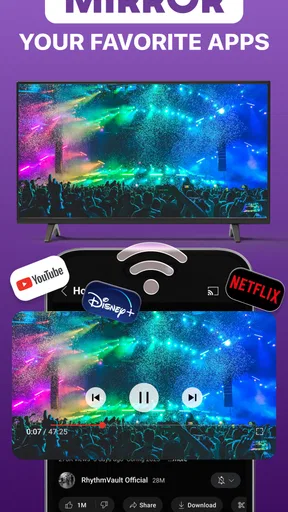
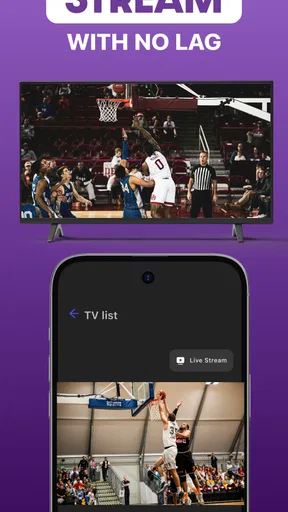
Once you’re all set up, the fun begins. The app lets you mirror just about anything from your phone to the TV. Videos, photos, even presentations if you’re feeling fancy. I tried streaming a couple of YouTube videos and, honestly, it was pretty seamless. The quality was sharp, and there was no noticeable lag.
One feature that stood out is the ability to cast web videos directly. Browsing through my favorite online clips and watching them on the big screen felt like an upgrade. Plus, you can control playback directly from your phone, which is super convenient when you’re lounging on the couch.
Performance and Quality
In terms of performance, Roku Screen Mirror & Cast TV holds its ground. The app efficiently mirrors the screen without any major hiccups. I did notice a slight delay when playing fast-paced games, but for regular streaming, it’s a smooth ride.
Audio and video quality largely depend on your network speed. On a strong Wi-Fi connection, the app delivers crisp visuals and clear sound. So, if you’re planning a movie night, make sure your internet is up to speed.
Compatibility and Limitations
Compatibility-wise, the app works well with most Roku devices. However, it’s worth mentioning that some older models might face issues. Check the compatibility list before getting started to avoid any hiccups.
Also, while the app excels at streaming videos and images, it doesn’t support DRM-protected content. So, if you’re hoping to cast Netflix or Hulu, you’ll need to find alternative solutions.
Final Thoughts
All in all, Roku Screen Mirror & Cast TV is a handy tool for those looking to expand their viewing experience. It’s easy to set up, user-friendly, and opens up a world of possibilities on your TV screen. Sure, there are a few limitations, but for the casual user, it’s a solid choice.
If you’re tired of huddling around your phone or tablet, give this app a go. It might just be the solution you didn’t know you needed. Happy casting!
Verdict
Strengths of Roku Screen Mirror & Cast TV
- Easy setup with user-friendly interface.
- Supports a wide range of devices.
- High-quality video casting.
- Minimal lag for smooth streaming.
- Compatible with Android and iOS.
Limitations of Roku Screen Mirror & Cast TV
- Occasional disconnects during casting.
- Limited free features available.
- Ads can be intrusive at times.
- Requires stable Wi-Fi for optimal use.
- Not all apps are supported for casting.
Similar Picks in This Category
View All
Google Calendar
Google LLC4.6

Google Drive
Google LLC4.3

Google Assistant
Google LLC3.9

Microsoft OneDrive
Microsoft Corporation4.6

Samsung Calendar
Samsung Electronics Co., Ltd.4.1

Microsoft OneNote: Save Notes
Microsoft Corporation4.6
Frequently Asked Questions
What devices are compatible with Roku Screen Mirror & Cast TV?
Roku Screen Mirror & Cast TV is compatible with most Android and iOS devices. Users should ensure their smartphone or tablet runs on a recent version of their operating system. Additionally, the Roku device must be on the same Wi-Fi network as the mobile device for seamless connectivity.
How do I set up screen mirroring with Roku Screen Mirror & Cast TV?
To set up screen mirroring, first ensure both your mobile device and Roku are connected to the same Wi-Fi network. Then, open the app and follow the on-screen instructions to select your Roku device. Confirm the connection on your TV when prompted. This should establish a stable mirroring session.
Is there a cost associated with using Roku Screen Mirror & Cast TV?
Roku Screen Mirror & Cast TV offers a free version with basic features, but there may be in-app purchases available for enhanced functionality. These might include premium features such as ad-free usage or additional casting options. It's advisable to review these options within the app.
Can I stream all types of media using Roku Screen Mirror & Cast TV?
While Roku Screen Mirror & Cast TV supports a wide range of media types, including videos, photos, and music, some formats might not be supported. It’s best to check if your desired content format works by testing a small file first. Additionally, DRM-protected content may not be playable.
What should I do if I experience connectivity issues?
If you encounter connectivity issues, first ensure both devices are on the same Wi-Fi network. Restart both devices and check for any updates to the app or your device's operating system. If problems persist, consult the app’s support section for more detailed troubleshooting steps.
